How to Make a Logo Background Transparent
Filed under Logo
You download a logo, drop it onto a coloured slide, and it arrives inside an ugly white rectangle. This is the single most common frustration when working with logo files, and it almost always comes down to one thing: the file format you chose cannot store transparency.
Here is what is actually happening, and how to get a clean transparent logo every time.
Why the white box appears
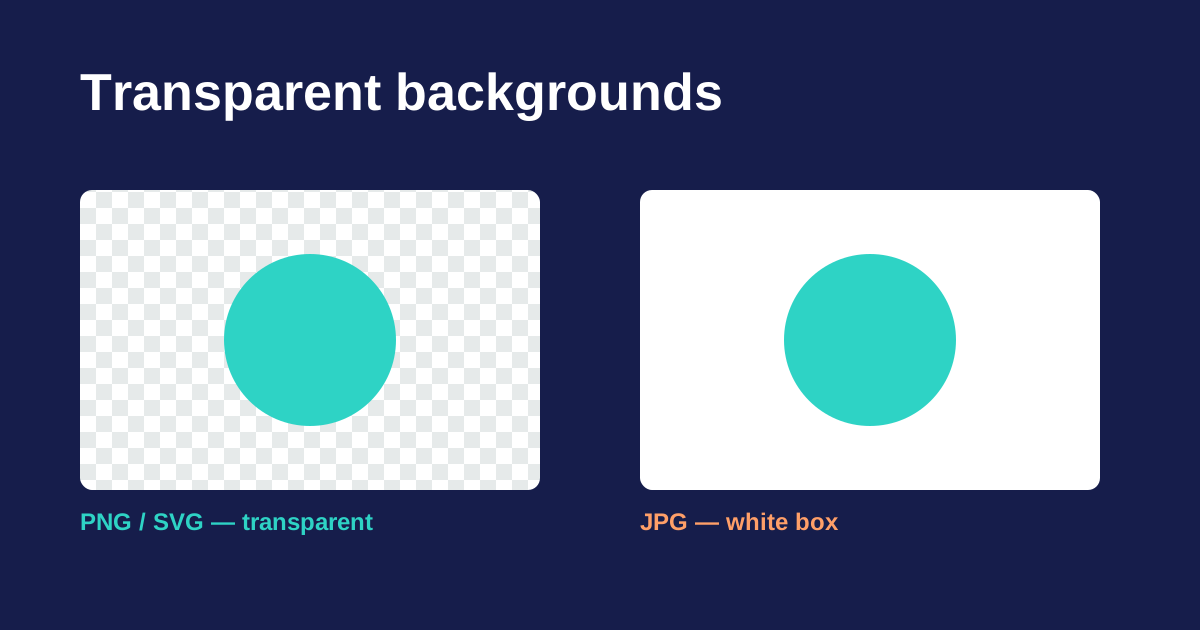
Image formats differ in whether they can record "nothing here". A pixel in a JPG has a red, green and blue value and nothing else — there is no way to say that a pixel is empty. So when a logo with a transparent background is saved as a JPG, the empty area has to become some colour, and that colour is almost always white.
The formats that can store transparency do it with an alpha channel: a fourth value per pixel recording how opaque it is, from fully transparent to fully solid.
- PNG — full alpha channel. This is the standard choice for a transparent raster logo.
- SVG — transparent by nature. An SVG only paints the shapes you define; everything else stays empty unless you explicitly draw a background.
- WebP — supports alpha, smaller files than PNG, and now supported everywhere that matters.
- JPG — no alpha channel at all. Never use it for a logo that needs to sit on anything other than the colour it was exported against.
So the short answer to "how do I make the background transparent" is usually "download the PNG or SVG instead of the JPG". Every logo in our library offers transparent PNG and SVG versions alongside the JPG.
How to tell whether a file is actually transparent
A white background and a transparent background look identical against a white page, which is why people only discover the problem after placing the logo somewhere dark. Three quick checks:
- Look for the checkerboard. Design tools and most image viewers render transparency as a grey and white checker pattern. If you see a solid white rectangle instead, it is not transparent.
- Drop it on a dark shape. The fastest test. Put the image over a black rectangle in any editor or slide deck.
- Check the extension. If it ends in
.jpgor.jpeg, it is definitively not transparent, whatever it looks like.
Converting a logo to a transparent PNG
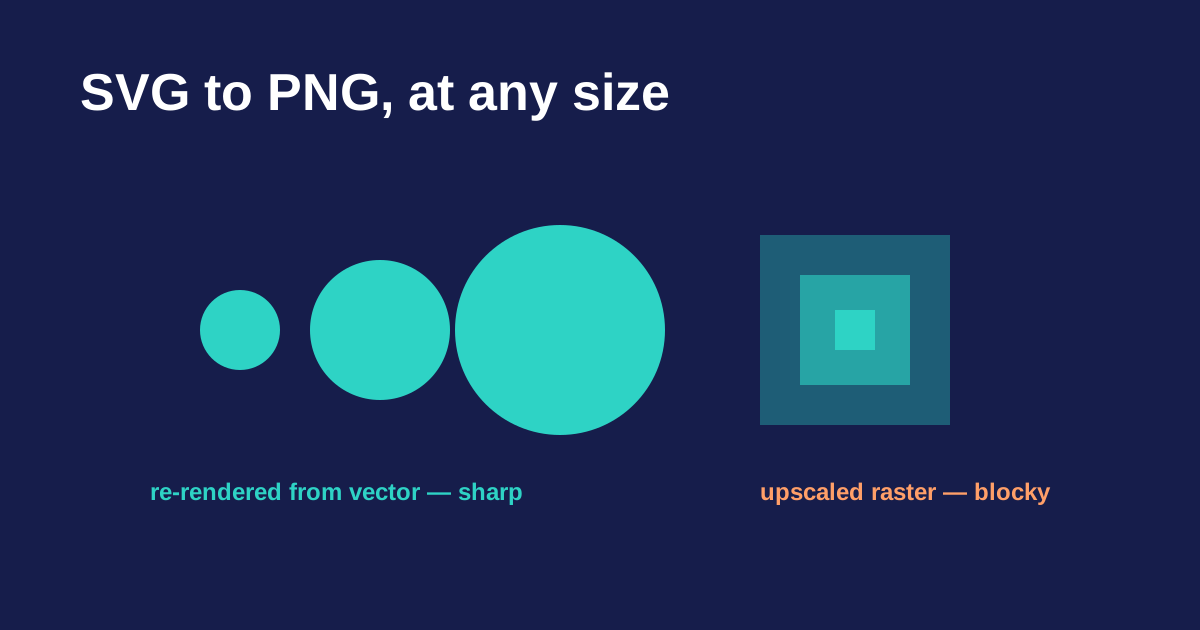
If you have an SVG and need a PNG, this is straightforward and lossless in the sense that matters: the vector is re-rendered at whatever pixel size you ask for, so the result is sharp rather than resized.
Our SVG to PNG converter defaults to a transparent background and lets you choose the output size. Pick the logo, set the width, download. Nothing is uploaded — the conversion happens in your browser.
Removing a white background from a JPG
This is the harder case, and it is worth being honest about the result. Deleting white pixels from a JPG does not recover the transparency that was lost — it approximates it, and the approximation is usually visible.
Two things go wrong. First, JPG compression introduces faint artefacts around edges, so the "white" is not uniformly white and a simple colour-key selection leaves a dirty halo. Second, anti-aliased edges are genuine blends of the logo colour and the background colour; once the background is removed, those blended pixels remain, producing a pale fringe.
If you must do it, select by colour range rather than a single value, then contract the selection slightly and feather it by a pixel. But the far better answer is to find the original vector. For well-known brands that is usually possible — search the brand index for the company and download the SVG.
The background that is hiding in your SVG
Occasionally an SVG still shows a white box, which surprises people because SVGs are supposed to be transparent. The cause is almost always a background rectangle left in by whoever exported it — a <rect> the full size of the canvas, filled white.
Open the file in a text editor and look for a rect near the top of the document with a white or #FFFFFF fill covering the whole viewBox. Delete that one element and the logo becomes properly transparent. SVGs are plain text, which makes this a ten-second fix once you know to look.
Which format to use where
- Website, app, anything that scales — SVG. Sharp at every size, tiny file, transparent by default.
- Slide deck, document, email signature — PNG at roughly twice the size you will display it.
- Print — EPS or AI, handed to the printer as a vector.
- Photograph — JPG, which is what it is good at. Just not for logos.
Get the format right at the point of download and the white-box problem never comes up again.