Convert SVG to PNG Without Losing Quality
Filed under Logo
"Converting SVG to PNG without losing quality" sounds like it should be impossible — you are going from a scalable format to a fixed grid of pixels, and that is a one-way door. But the phrase describes a real and achievable goal, and getting it right is mostly about understanding what is actually happening during the conversion.
An SVG has no resolution to lose
This is the part that trips people up. A PNG is a grid: 512 pixels wide means 512 columns of colour, and that is all the information there is. An SVG is a set of instructions — draw a circle here, fill this path with that colour. It has no pixels at all until something renders it.
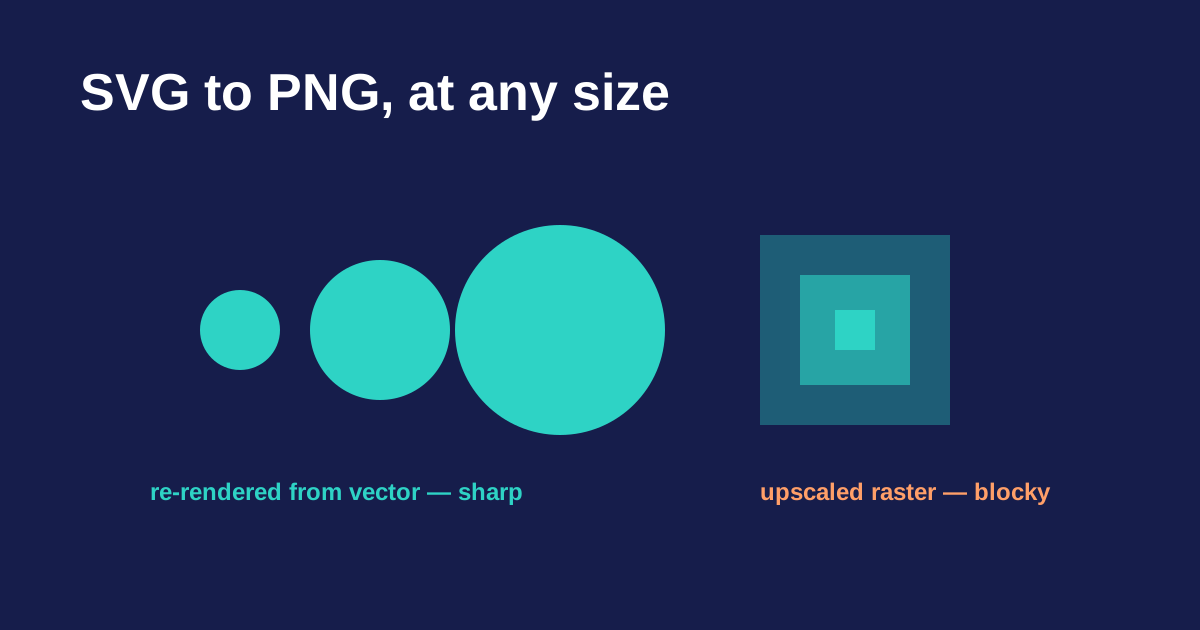
So converting is not resizing. It is rendering: the browser or design tool follows the instructions at whatever size you name and produces a fresh grid of pixels. Ask for 2000 pixels and you get 2000 pixels of genuine detail, not a stretched version of a smaller image.
That is the whole trick. You never lose quality going from SVG to PNG, provided you render at the size you actually need. Quality is lost when someone exports a small PNG and then enlarges that.
Choose the size before you export, not after
Work out the largest size the image will be displayed at, then render for that.
- Screen, standard density — render at the display size.
- Screen, high density — render at two or three times the display size. A logo shown at 200px wide should be exported at 400px or 600px for Retina and equivalent displays, then constrained by CSS.
- Slide decks — around twice the placed size. Presentation software scales images badly, so give it headroom.
- Print — do not use PNG. Hand the printer the EPS or AI file and let their workflow handle resolution.
Our SVG to PNG converter takes any size up to 4096 pixels and keeps the aspect ratio locked by default. It renders in your browser, so the file never leaves your machine.
Transparency, and the white box
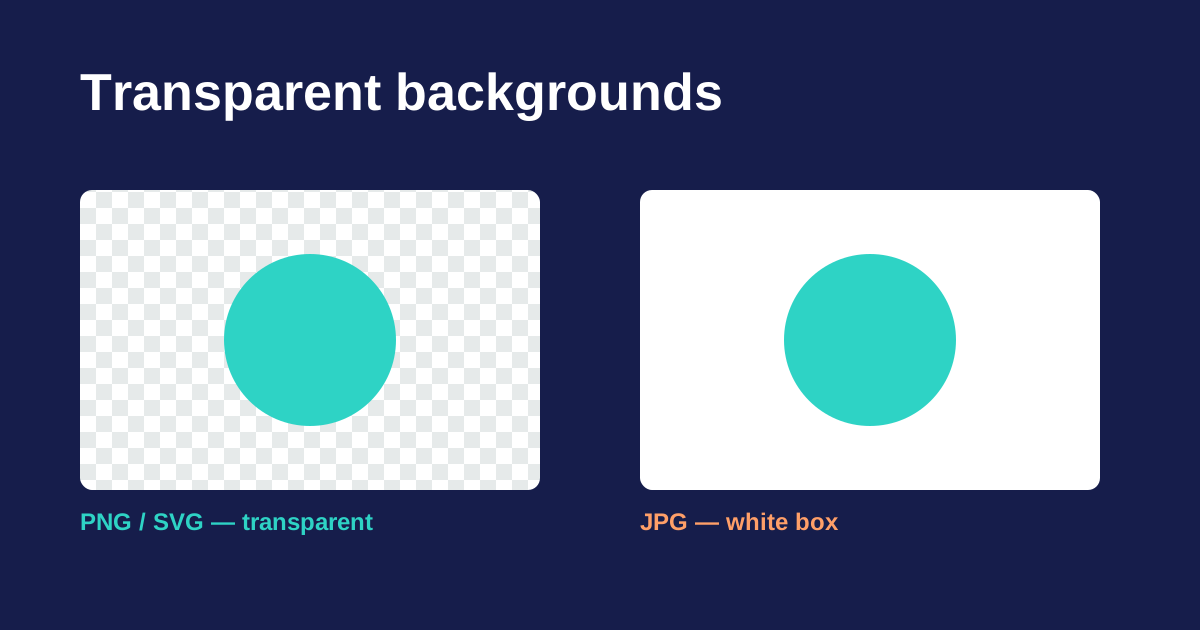
An SVG is transparent unless something in it paints a background. PNG supports transparency too, so the default conversion preserves it. If your exported PNG has a white rectangle behind the logo, one of two things happened: the export was set to a solid background, or the SVG itself contains a background rect.
The second is common in files exported from design tools. Open the SVG in a text editor — it is plain text — and look for a <rect> covering the whole viewBox with a white fill. Deleting that one element fixes it permanently. There is more on this in our guide to transparent logo backgrounds.
The viewBox problem
Here is a failure that looks like a quality problem but is not. Many logo SVGs carry a viewBox but no explicit width and height. That is perfectly valid — it is what makes them scale — but when a browser is asked to rasterise such a file it may fall back to a default intrinsic size, typically 300 × 150. The result is a logo that comes out squashed or unexpectedly small.
The fix is to give the root element explicit dimensions taken from the viewBox before rendering:
<svg viewBox="0 0 512 256" width="512" height="256">Any good converter does this for you. If you are scripting the conversion yourself, it is the first thing to check when output looks wrong.
Fonts do not travel
If an SVG references a font by name rather than converting the text to paths, the rendering machine needs that font installed. It usually is not, so the renderer substitutes something else and your carefully set wordmark comes out in a default sans-serif.
The fix belongs upstream: convert text to outlines before saving the SVG. In Illustrator that is Type → Create Outlines; in Figma, Outline Stroke and flatten. Most logo SVGs distributed for download already have text outlined, which is why they render identically everywhere.
When PNG is the wrong answer
It is worth asking whether you need a PNG at all. If the destination is a website, serving the SVG directly is almost always better: one file works at every density, the file is typically smaller, and it stays sharp on displays that do not exist yet. Browser support has been universal for years.
Reach for PNG when the destination cannot take a vector — a slide, a document, a marketplace listing, an email signature — or when you need a specific pixel size for something like an app icon or a favicon.
A short checklist
- Render at the largest size you will display, or 2× for high-density screens
- Keep the background transparent unless you specifically need one
- Make sure the SVG has explicit width and height, or that your tool infers them from the viewBox
- Outline any text before export
- Prefer the SVG itself for web use; use PNG where a vector will not go
You can start from any of the free SVG logos in the library, or upload your own file.